
 Español











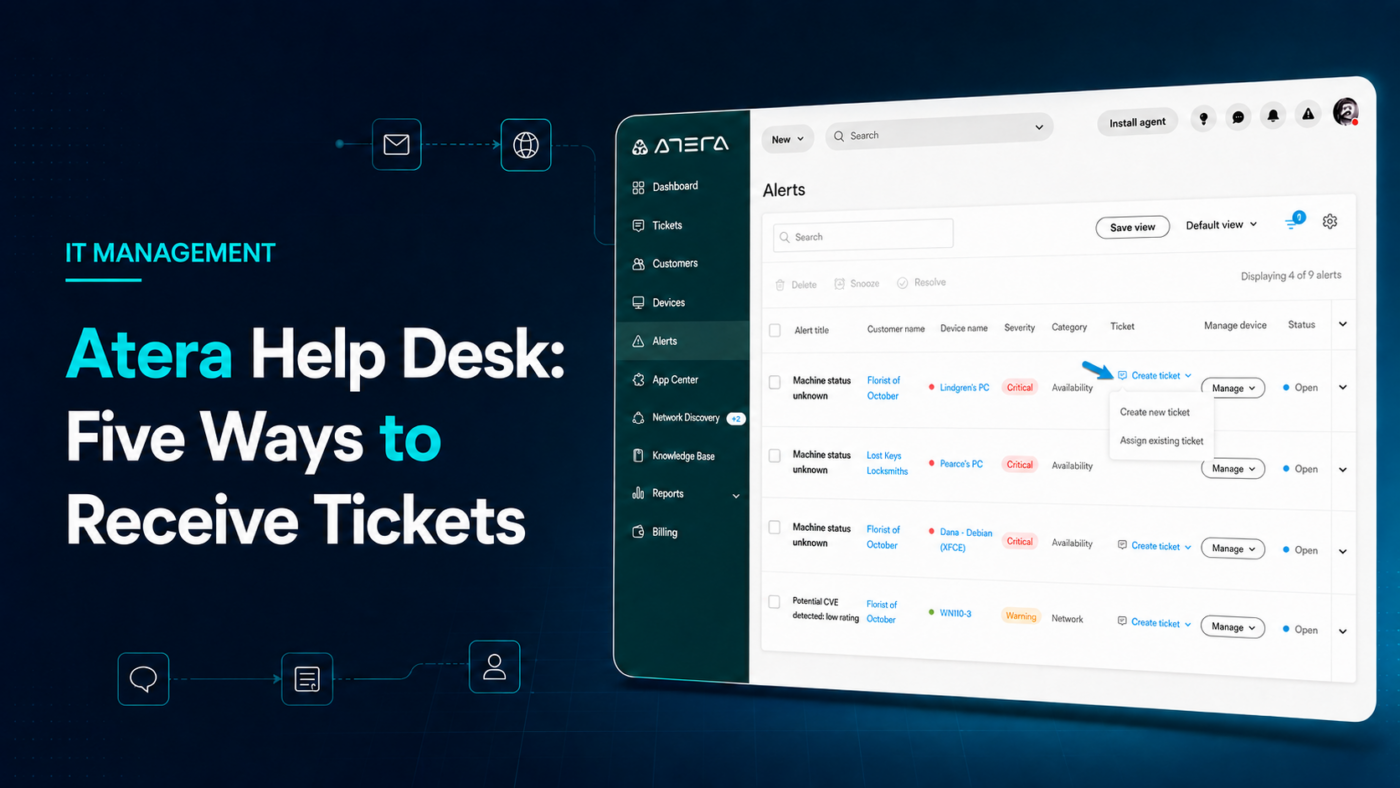
How many support requests does your company receive through calls, emails, or messages that never get logged? An Atera Help Desk brings incidents together in one place, even when users rely on different channels to request assistance.
This allows the IT team to assign responsibilities, review history, and track the status of each request. It also reduces the risk of losing important information across isolated conversations.
Why Centralize Support Requests?
When there is no centralized process, an issue can remain in an unanswered email or in a message that no one recorded. Therefore, the problem is not always the technical team’s capacity, but rather the lack of visibility.
Atera’s ticketing system allows teams to manage and track requests from a centralized platform. Each ticket can include incident details, priority, status, and communication history, as described in its help desk and ticketing system.
This way, every request becomes useful information for measuring response times, identifying recurring incidents, and making better decisions.
Five Ways to Receive Tickets with Atera
An Atera Help Desk does not require all users to report problems in the same way. The platform offers several alternatives:
1. Manual Creation
IT staff can create a ticket directly from the platform. This option is useful when a request arrives by phone, message, or directly through a technician.
2. Email
Atera allows you to configure a support email address that automatically converts incoming messages into tickets. As a result, users can request assistance without having to learn a new process.
3. Monitoring Alerts
An alert detected on a device can be converted into a ticket manually or automatically. This helps the team act before a failure causes a major disruption.
4. Service or Customer Portal
Users can submit requests through a portal, check their progress, and communicate with the support team. In addition, they gain greater visibility into the status of each case.
5. Helpdesk Agent
On Windows devices, users can create a ticket from the Atera agent or by using the shortcut Ctrl + F12. They can even attach a screenshot to provide additional context.
More Than Receiving Tickets: Managing IT Operations
Centralizing requests is only the beginning. Atera also integrates remote monitoring, device access, automation, patch management, and asset management features. As a result, the team can associate each incident with the affected device and gain more context to resolve it.
However, a tool delivers better results when it is configured according to the company’s actual needs. Workflows, priorities, alerts, and responsibilities should all support a defined strategy.
At Nubetia, we help companies implement an Atera Help Desk and make it part of a more organized IT operation.
Our support can include licensing, configuration, monitoring, automation, ticket management, and operational follow-up. This way, your company gets both the technology and the specialized support needed to make the most of it.
The goal is not to receive more tickets, but to prevent important requests from getting lost.
Would you like to learn how Atera could work for your company? Contact Nubetia and schedule a demonstration. You can schedule a consultation call here.
References:
Atera. (s. f.-a). Atera Helpdesk Agent FAQ. Recuperado el 26 de agosto de 2026, de https://support.atera.com/hc/en-us/articles/23384219688988-Atera-Helpdesk-Agent-FAQ
Atera. (s. f.-b). Atera’s help desk & ticketing system for IT teams. Recuperado el 26 de agosto de 2026, de https://www.atera.com/products/ticketing/
Atera. (s. f.-c). Five ways to create helpdesk tickets. Recuperado el 26 de agosto de 2026, de https://support.atera.com/hc/en-us/articles/217586988-Five-ways-to-create-helpdesk-tickets
