
 Español










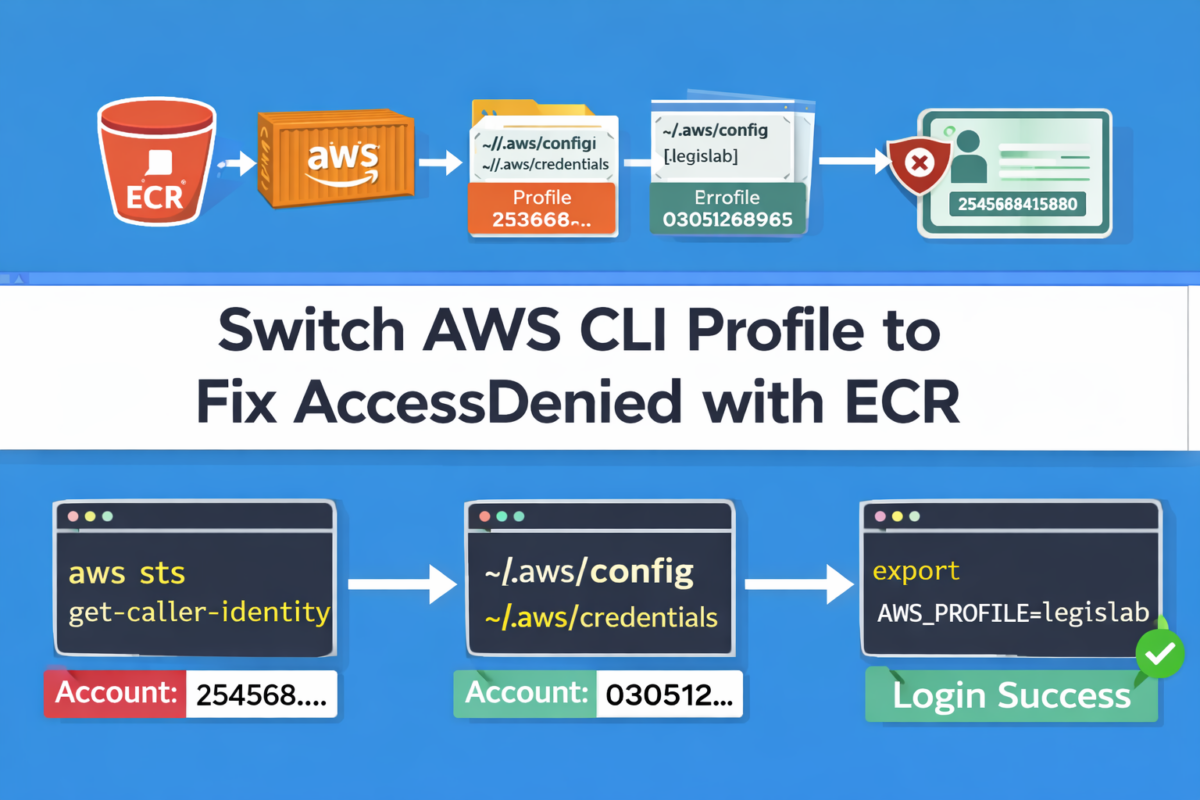
How to switch AWS CLI user/account (profiles) and fix “AccessDenied” in ECR
If you use AWS CLI with multiple accounts (for example, a personal account and a project account), it’s common for your terminal to “stick” to the wrong user/account. The typical symptom: commands like ECR login or S3 listing return AccessDenied, even though you “know” you have permissions.
In this tutorial you’ll learn how to confirm which identity you’re using, how to find your correct profile
(e.g., example), and how to force AWS CLI to use it in your current terminal session.
Why does this happen?
AWS CLI decides which credentials to use in this order (practical summary):
- Environment variables (
AWS_ACCESS_KEY_ID,AWS_SECRET_ACCESS_KEY,AWS_PROFILE) - Default profile in
~/.aws/credentials - Profile settings in
~/.aws/config
If you ever exported credentials globally or set a profile in another session, you can end up hitting the wrong account without noticing.
Step-by-step solution: switch to the correct profile (example)
1) Confirm which identity you are using RIGHT NOW
This command shows exactly which user/role and account AWS CLI is using in this terminal:
aws sts get-caller-identity --region $AWS_REGION
If you see an account like 254568415880, you’re on the wrong account/user.
For example, you want to see:
- Account:
0305XXXexample5
2) List your profiles and find the correct one
AWS CLI stores profiles in two files:
cat ~/.aws/config
cat ~/.aws/credentials
Look for entries like:
[profile example]in~/.aws/config[example]in~/.aws/credentials
Note: In config it is written as profile example, but in credentials
it’s typically just example.
3) Force the correct profile in this terminal
The simplest and most reliable method is exporting the profile:
export AWS_PROFILE=example
aws sts get-caller-identity --region $AWS_REGION
Now it MUST show something like:
{
  "Account": "0305XXXexample5",
  ...
}
✅ If you see 0305XXXexample5, you’re now using the correct profile.
4) Retry ECR login with the correct profile
Once you’re on the right account, log in to ECR again:
aws ecr get-login-password --region $AWS_REGION --profile $AWS_PROFILE | \
docker login --username AWS --password-stdin ${AWS_ACCOUNT_ID}.dkr.ecr.${AWS_REGION}.amazonaws.com
✅ This should no longer return AccessDenied.
Quick troubleshooting
Case A: “I still see 254568… even after exporting AWS_PROFILE”
This almost always means one of the following:
- Your
exampleprofile doesn’t exist or is misspelled - Environment variables with direct credentials are taking priority
Check if you have AWS credentials exported:
env | grep AWS
If you see AWS_ACCESS_KEY_ID / AWS_SECRET_ACCESS_KEY, remove them (only in this terminal):
unset AWS_ACCESS_KEY_ID
unset AWS_SECRET_ACCESS_KEY
unset AWS_SESSION_TOKEN
Then try again:
export AWS_PROFILE=example
aws sts get-caller-identity --region $AWS_REGION
Case B: “I don’t have AWS_REGION or AWS_ACCOUNT_ID set”
You can set them quickly (example):
export AWS_REGION=us-east-2
export AWS_ACCOUNT_ID=0305XXXexample5
Case C: “I want to switch accounts for just ONE command”
You can do it without exporting:
aws sts get-caller-identity --profile example --region $AWS_REGIONAnd for ECR:
aws ecr get-login-password --region $AWS_REGION --profile example | \
docker login --username AWS --password-stdin 0305XXXexample5.dkr.ecr.${AWS_REGION}.amazonaws.com
Practical recommendation
When working with multiple accounts, run this at the start of each session:
aws sts get-caller-identity --region $AWS_REGIONIt saves you hours of “Why am I getting AccessDenied if it worked yesterday?”
Yoast block (SEO)
- Focus keyphrase: switch AWS CLI user
- Suggested slug: switch-aws-cli-profile
- SEO title: How to switch AWS CLI user/account (profiles) and avoid AccessDenied
- Meta description: Learn how to confirm which AWS account your CLI is using, switch to the correct profile (e.g., example), and fix AccessDenied when logging into ECR—step by step.
