
 Español









Share a Laravel (Herd) project with ngrok: a public link in minutes
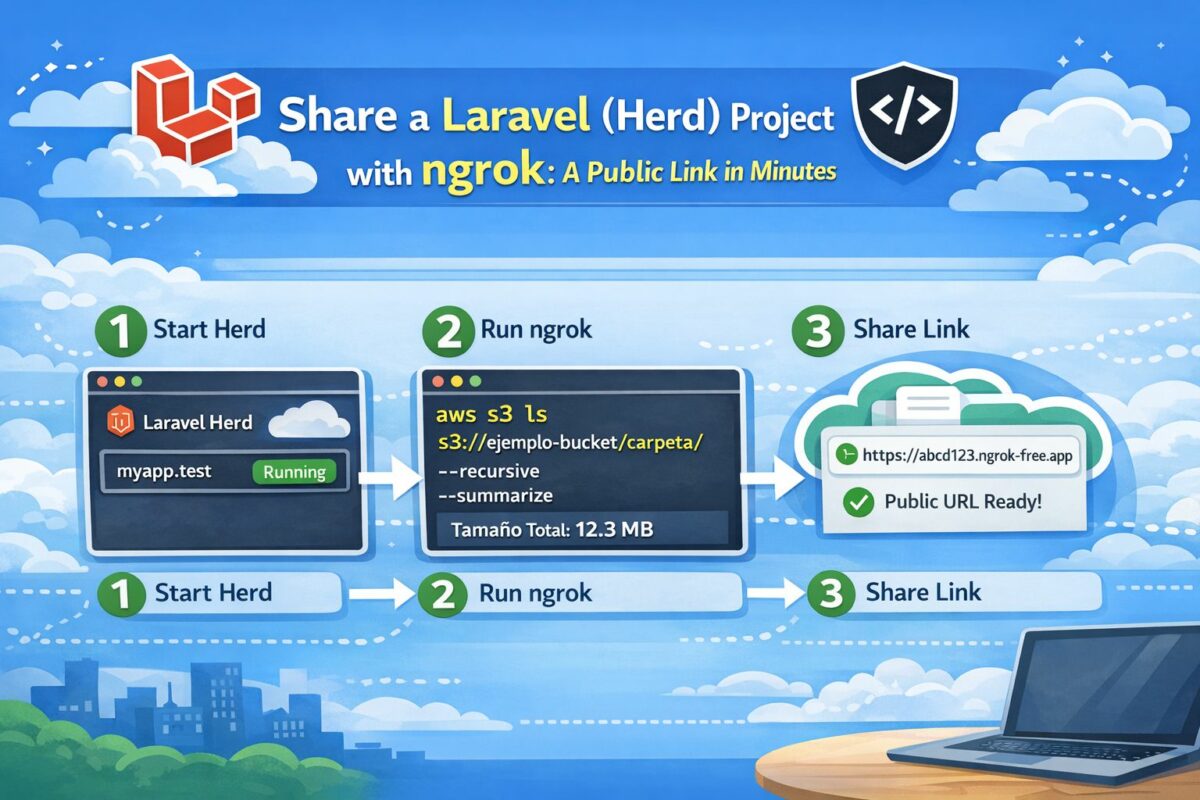
If you’re running your Laravel project on macOS with Laravel Herd (for example example.test)
and you want to show it to a remote Project Manager (PM), ngrok is one of the fastest ways to create a temporary public link
so they can access your local site from anywhere.
In this guide, you’ll:
- Install ngrok on Mac.
- Configure your ngrok authtoken.
- Create a public link for a Herd-served site.
- Fix Herd’s common “Site not found” error (Host header).
- See “traditional” ngrok commands (no Herd) to expose a local port.
- Troubleshoot common issues like 419 CSRF during login.
Requirements
- macOS with Laravel Herd installed and your site working (e.g.,
http://example.test). - Homebrew installed.
- A free ngrok account.
Step 1: Install ngrok on Mac
Install it with Homebrew:
brew install ngrok/ngrok/ngrokVerify it’s installed:
ngrok versionStep 2: Configure the ngrok authtoken (one-time)
You don’t choose the authtoken. ngrok generates it in your account dashboard.
- Log in to ngrok and open your Dashboard.
- Find the Auth Token section.
- Copy the token and run:
ngrok config add-authtoken YOUR_REAL_TOKENTo confirm it was saved, check the config file:
cat "/Users/$USER/Library/Application Support/ngrok/ngrok.yml"Security tip: don’t publish your authtoken. Treat it like an account key.
Step 3: Create a public link for your Herd site
Here’s the key detail: Herd serves sites by domain (Host header). If you run ngrok “normally” against the domain, it’s very common to get a 404 with “Site not found”. The fix is to rewrite the Host header so Herd receives the correct local domain.
Option A (recommended): Rewrite the Host header
Stop any running ngrok process (Ctrl + C) and run:
ngrok http --host-header=rewrite http://example.testngrok will display a public URL similar to:
Forwarding https://xxxxxx.ngrok-free.app -> http://example.test:80Copy that https://… link and share it with your PM.
Option B: Force the host manually (alternative)
If the option above doesn’t work for any reason, try forcing the host:
ngrok http 80 --host-header=example.testFixing the common Herd error: “404 Site not found”
If your PM opens the ngrok link and sees something like:
- 404
- Site not found
- “Please ensure that the folder is within your parked paths.”
Then ngrok is sending the Host as xxxx.ngrok-free.app and Herd doesn’t recognize that domain.
Use:
ngrok http --host-header=rewrite http://example.testHow to confirm locally that Host headers are the issue
You can test from your terminal whether Herd responds correctly when the Host is your site’s local domain:
curl -I http://127.0.0.1:80 -H "Host: example.test"If the response becomes 200 or 302 (instead of “Site not found”), then the Host header rewrite is the correct fix.
Common problems and quick fixes
1) Login fails with a 419 error (CSRF)
When the domain changes (from .test to ngrok-free.app), Laravel may block sessions/CSRF.
Try this:
- In your
.env, updateAPP_URLto your ngrok URL:
APP_URL=https://YOUR_SUBDOMAIN.ngrok-free.app
SESSION_SECURE_COOKIE=true
Then clear caches:
php artisan optimize:clear2) Assets (CSS/JS) don’t load when using Vite
If you’re using Vite in dev mode, remote access can break asset loading. For a quick, stable demo, build assets:
npm run build
And make sure you are using the Laravel helper (@vite) correctly in your layout.
3) The public URL changes every time
On ngrok’s free plan, the subdomain usually changes when you restart the tunnel. For a more stable URL, consider:
- A paid ngrok plan with a reserved domain.
- Alternative: Cloudflare Tunnel (great for stable links too).
Traditional ngrok commands (without Herd)
If you’re not using Herd (or your app serves directly on a port), these are the typical commands.
In this setup, ngrok exposes a local port (for example 3000, 8000, or 5173).
1) Expose a local port (most common)
Example: if your app runs on http://localhost:8000:
ngrok http 8000Example: Vite often runs on 5173:
ngrok http 51732) Expose a full local URL
You can also pass the full URL:
ngrok http http://localhost:80003) Use the ngrok inspector (great for debugging)
While ngrok is running, open this URL in your browser:
http://127.0.0.1:4040You’ll see all requests, headers, and responses.
Final checklist (before sharing with your PM)
- Your site works locally:
http://example.test - ngrok is configured with an authtoken.
- Your tunnel is running with Host header rewrite (Herd):
ngrok http --host-header=rewrite http://example.test- You share the public link
https://....ngrok-free.appwith your PM.
Conclusion
With ngrok, you can share your Laravel Herd project in minutes. The key for Herd is rewriting the Host header, because Herd chooses which site to serve based on the domain.
If you want stable links and more control, the natural next step is Cloudflare Tunnel.
